
Carwow Driver Training Guide
This guide walks you through everything you need to know to complete Carwow vehicle movements correctly, using both the Engineius app and the FerrisIQ app.
Overview
As a live driver in the Engineius network, you’ll have visibility to movements for our client Carwow. Carwow jobs have one thing that makes them different from a standard movement: you use two apps together, not one.
Engineius App – where you start the job, get your PIN, log expenses, and pause jobs if needed.
FerrisIQ App – where you complete a second, more detailed vehicle appraisal for Carwow's own audit trail.
This guide breaks the process into four parts:
Read through each section in order, then complete the short knowledge check at the end to unlock access to Carwow jobs.
Step 1: Set Up the FerrisIQ App
Do this once, before your first Carwow job.
1.1 Download the app
Download FerrisIQ branded simply as "IQ" on the app stores:
1.2 Create your account (first-time users only)
Open the app and tap Register.
Enter your basic personal information.
Check your email for a 6-digit activation code.
Enter the code to activate your account, then log in.
1.3 Set your location permissions
When you first log in, you'll see a series of pop-ups. Respond as follows:
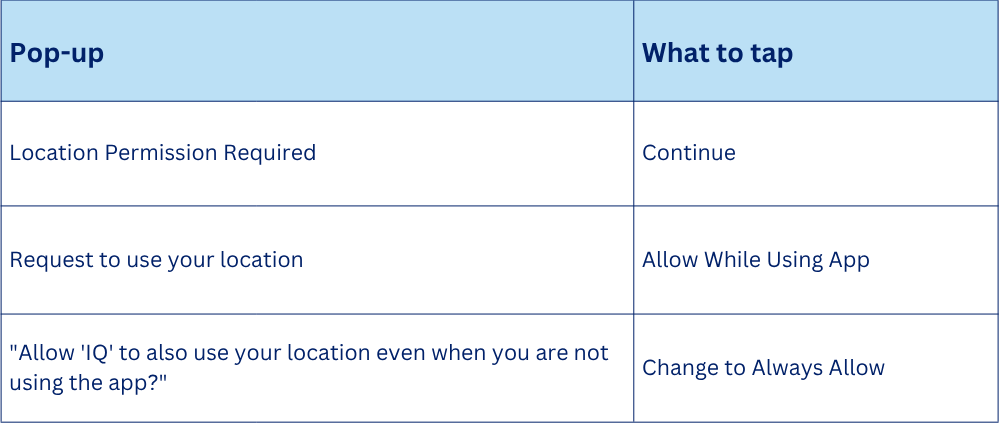
Why this matters: FerrisIQ does not track your location outside of a movement. Location must stay visible for the duration of the movement only, for audit and safety purposes.
Step 2: How the Two Apps Work Together
Every Carwow job need you to use both apps at the same time.
Start in the Engineius App. All jobs begin here, and this is also where you'll find the PIN code you need.
Switch to FerrisIQ to complete the Carwow-specific vehicle appraisal. The Engineius app will instruct you when to switch over.
Keep both apps open in the background for the entire movement. Don't force-close either one.
Most detailed, job-specific instructions will appear directly inside the app when you start the movement but the core sequence and rules below always apply.
Step 3: Completing a Movement
The FerrisIQ appraisal process
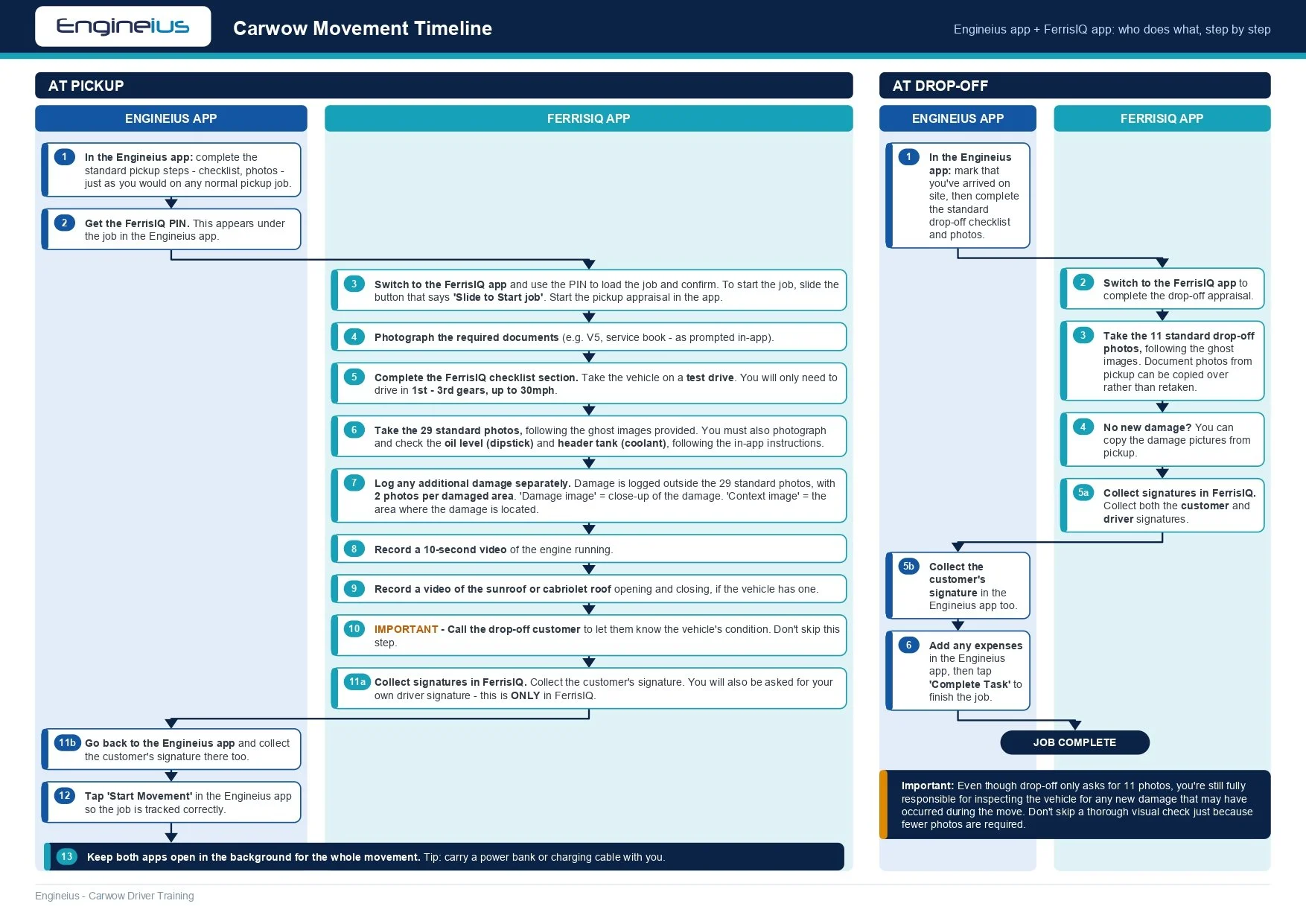
A Carwow movement has two stages — pickup and drop-off. At each stage, you always start in the Engineius app, then move to FerrisIQ to complete the Carwow-specific appraisal, then return to Engineius to finish up. Follow the timeline below in order.
Keep both apps running in the background throughout the whole job. Never force-close either one. Because of this, it's a good idea to carry a power bank or charging cable with you, as keeping both apps open all day can drain your battery faster than usual. We recommend using ‘battery save mode’ on.
At pickup
In the Engineius app: complete the standard pickup steps - checklist, photos - just as you would on any normal pickup job.
Get the FerrisIQ PIN. This appears under the job in the Engineius app.
Switch to the FerrisIQ app and use the PIN to load the job and confirm. To start the job – slide the button that says ‘Slide to Start job’. Start the pickup appraisal using in the app.
Take photos of the required documents (e.g. V5, service book - as prompted in-app).
Complete the FerrisIQ app checklist section. Take the vehicle on a test drive. You will only need to drive using 1st – 3rd gears up to 30mph
Take the 29 standard photos, following the ghost images provided. Also, it’s required for you to photograph and check the oil level (dipstick) and header tank (coolant), following the in-app instructions.
Log any additional damage separately. Any damage found is logged outside the 29 standard photos, with 2 photos per damaged area. For example, ‘Damage imagine’ is used for the close up of the damage and ‘Context imagine’ is used to show the area where the damage is located.
Record a 10-second video of the engine running.
Record a video of the sunroof or cabriolet roof opening and closing, if the vehicle has one.
Call the drop-off customer to let them know the vehicle's condition. This step is important - don't skip it.
Collect the customer's signature. Collect a signature in the FerrisIQ and now go back to the Engineius app and collect a signature too. You will be asked to provide your own signature ONLY in the FerrisIQ.
Return to the Engineius app and tap 'Start Movement' so the job is tracked correctly.
Ensure both apps are open in the background during the whole movement.
At drop-off
In the Engineius app: mark that you've arrived on site, then complete the standard drop-off checklist and photos.
Switch to the FerrisIQ app to complete the drop-off appraisal.
Take the 11 standard drop-off photos, following the ghost images. Document photos from pickup can be copied over rather than retaken.
If no new damages were made, you can copy the damage pictures from pick up.
Collect signatures on both apps – remember to collect both customer and driver signature on the FerrisIQ app.
Return to the Engineius app, add any expenses, and tap 'Complete Task' to finish the job.
Important: Even though drop-off only asks for 11 photos, you're still fully responsible for inspecting the vehicle for any new damage that may have occurred during the move. Don't skip a thorough visual check just because fewer photos are required.
Key Rules to Remember
Use this as a quick checklist before and during every Carwow job:
Complete the vehicle appraisal twice at pickup and twice at drop-off (once per app)
Take 29 photos at pickup and 11 photos at drop-off on FerrisIQ, following the ghost images
Still visually inspect for new damage at drop-off, even with fewer required photos
Get signatures on both apps at pickup and drop-off
Keep both apps open in the background for the whole movement
Log all expenses in the Engineius app
Pause any job through the Engineius app only
Getting Help
If you run into any issues during a Carwow movement like app problems, unclear steps, or anything else … call Engineius and we'll support you directly.
Knowledge Check
Once you've read through this guide, complete the short knowledge test to confirm you understand the process. After passing the test, we will review your account and where applicable, we’ll give you access to Carwow movements.